Installing your first Skill takes about two minutes. Getting real, repeatable value out of a Skill library takes a little more thought. A Skill isn’t a longer prompt and it isn’t a chatbot persona, it’s a packaged set of instruction and reference files, plus optional scripts, that teaches Claude to do one specific job the same way every time. Here’s a practical guide to picking, structuring and running your Skills well.
Before you install anything, it helps to know exactly what you’re adding to Claude.
That framing matters, because it tells you when a Skill will help and when a plain prompt is enough.
The most common early mistake is installing whatever looks impressive. Start from the work instead.
Two or three well-chosen Skills beat a dozen you never trigger.
A Skill setup is a small system. Give it the same care you’d give a project folder.
A tidy setup is far easier to debug six months from now.
The same Skill file works across Claude.ai, Claude Code and Claude Desktop with no per-tool rewrite.
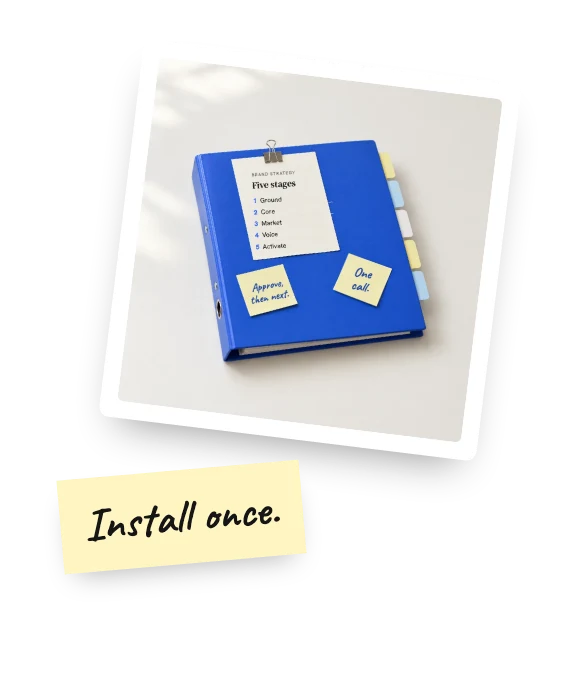
Install once, then confirm it loaded in each surface you actually use.
Claude selects a Skill by matching your request against the Skill’s description, so that description does real work.
Most “the Skill didn’t work” reports turn out to be “the Skill never triggered” reports.
Treat a new Skill like new code. Run it against work you already know the answer to.
Ten minutes of testing saves you from quietly shipping weak output for a month.
A handful of mistakes show up again and again in the first week.
Each of these is easy to fix once you notice it, and expensive to ignore.
Once one Skill is clearly earning its place, add deliberately rather than all at once.
Six Skills you trust are worth more than sixty you’ve never triggered.
Mastering Skills is less about volume and more about fit. Pick Skills that match work you genuinely repeat, keep each one narrowly scoped, test them against known inputs, and prune the ones that have stopped earning their place.
Every Skill in the Journey with AI library is tested in real workflows before it ships. Start with the single task you rewrite most, get that Skill working properly, then build outward from there. Questions along the way go to hello@journeywithai.com.
No. A Skill is a plain file you drop into Claude, and the instructions inside are written in ordinary language. If you can upload a file, you can use one.
Around two minutes for most. You download the file, add it to Claude, and start the conversation. There is no configuration step and nothing to install on your machine.
Yes. The same file works in all three, so you set it up once rather than repeating the work in every tool you use.
Two or three, chosen around work you already repeat every week. A small stack you actually reach for beats a large one you have to search through.
Open the Skill and edit the instructions, or pick up the updated version from your library. Updates to any Skill you have bought are free for its lifetime.
Journey with AI sells expert methods that install into your AI. Each one is built from a named expert's own projects.